
You can download several CSV files filtered by Item Quality Grade, allowing you to export data only for items that meet a selected quality threshold: from 1 (Very Low) to 6 (Perfect).
This filtering applies to the following file types:
You can adjust them by applying custom parameters to the CSV file download link:
- Go to your study dashboard and click "Export Data."
- Choose the desired CSV file, right-click it, and select "Copy link address. "
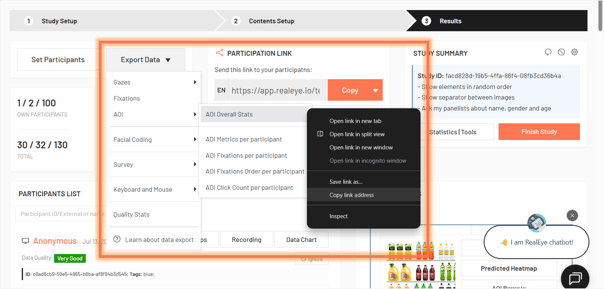
- Open a new browser tab and paste the link (do not open it yet!).
- Add your custom parameter to the URL. Use
?for the first variable and&for additional variables and click Enter. Available parameters based on the file type:- Raw Gazes:
testerQualityGradeItemMin - Fixations and AOI-based files:
participantQualityGradeItemMin
- Raw Gazes:
Examples:
-
If you want to download Raw Gazes CSV file with a minimum Item Quality Grade of 5 (Very Good), your download link becomes:
https://app.realeye.io/dashboard/study/<study_id>/export/csv?testerQualityGradeItemMin=5 - If you want to download AOI Overall Stats CSV file wwith a minimum Item Quality Grade of 5 (Very Good) your download link becomes:
https://app.realeye.io/dashboard/report/study-aoi-overall-stats/<study_id>?participantQualityGradeItemMin=5
⚠️ Note: The downloaded files will contain data only for items graded Very Good (5) or Perfect (6). Participant Quality Stats might have lower grades!
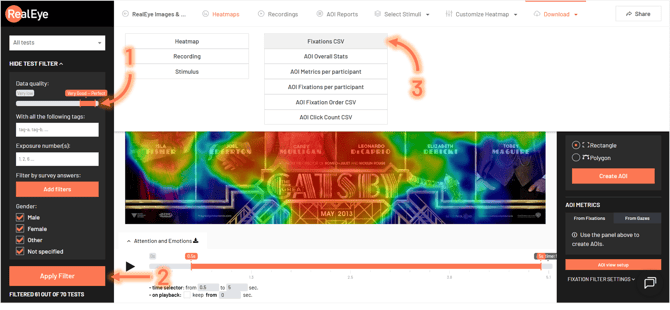
You can also apply filters directly from the Heatmap dashboard. After setting your desired filters, click "Download" from the menu above the heatmap. All CSV files downloaded this way will include the selected filters automatically:
💌 If you have any further questions, feel free to reach out to our team at support@realeye.io