
When running an eye-tracking study in RealEye, you can add parameters and tags to the Participation Link to track additional participant information.
1. Built-in parameters
RealEye offers several built-in parameters that integrate directly with the system:
-
realeye-tester-external_id: when redirecting participants, for example, from your external survey to RealEye, this parameter can be used to pass the participant's (External) ID. -
realeye-tester-age&realeye-tester-gender: if you don't want to (or can't) use the RealEye built-in post-test demographic survey, you can provide age and gender directly through these parameters. They will automatically upload as the participant's demographic data. For the gender parameter, use numeric values:realeye-tester-gender=1→ Male andrealeye-tester-gender=2→ Female.
To use these parameters, append them to your Participation Link, using ? for the first parameter and & for additional ones. So before a user takes part in your study, the Participation Link that you send to your testers should look as follows:
https://app.realeye.io/test/study_id/run?realeye-tester-external_id=external_id&realeye-tester-age=age&realeye-tester-gender=gender
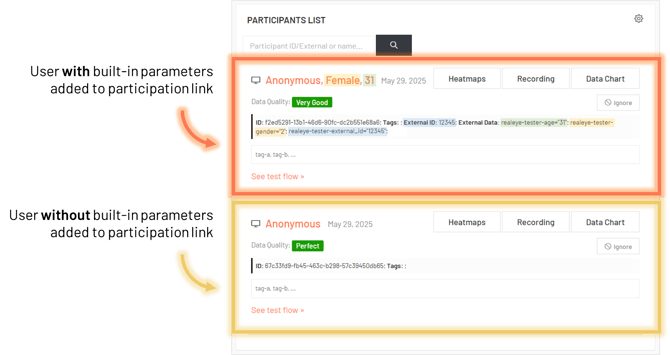
In RealEye, the values collected through these parameters will appear as:
- External ID in the Participants list in Results
- Age and Gender in participant demographic data, available for filtering
- External Data next to other (built-in or custom) parameters
2. Custom parameters
You can also add custom parameters to track additional participant information alongside the built-in parameters.
Let's say you want to share your study with participants from different groups based on their location and team_name. Therefore, you can append these parameters to your Participation Link, using ? for the first parameter and & for additional one(s).
So before a user takes part in your study, the Participation Link you send to your testers should look as follows:
https://app.realeye.io/test/study_id/run?location=location&team_name=team_name
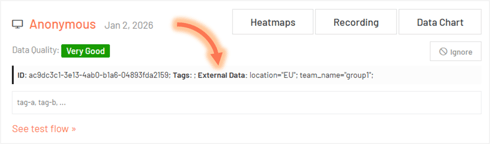
In RealEye, the values collected through these parameters will appear as External Data next to other (built-in or custom) parameters.
3. Tags
Tags allow you to label and filter participants in a simple way in the Analytics Dashboard (learn more here: Heatmaps: how to read and interpret them). They can be added to the Participation Link as a realeye-tester-tags parameter. Multiple tags should be separated by commas (,).
So before a user takes part in your study, the Participation Link you send to your testers should look as follows:
https://app.realeye.io/test/study_id/run?realeye-tester-tags=tag1,tag2
In RealEye, the values collected through these parameters will appear as Tags.
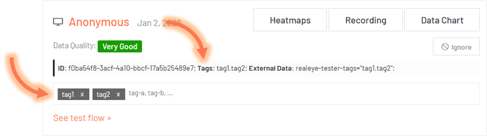
Tags can also be added manually or imported from a CSV file in the Participants list in Results after the study has started.
💌 If you have any further questions, feel free to reach out to our team at support@realeye.io